By default, Hikvision cameras operate on their own subnet, specifically the 192.168.254.* subnet. It’s unclear if you can change the subnet to your default LAN subnet or to your liking. In this scenario, the cameras remain in the default HikVision subnet.
There are multiple reasons why you would want access to the Hikvision camera:
- Your camera is offline, and you are unable to get it back online
- You have forgotten the password for the Hikvision camera.
- You do not have the correct IP address information for the camera.
Hikvision NVR access
You can configure the Hikvision NVR for direct access by setting the IP address in the system’s network configuration area.
- You can choose DHCP, which will provide the NVR with a default IP address from the router.
- A static IP address can also be provided, which is better so that your IP address remains the same after a reboot or a power cut.
Hikvision Camera Information
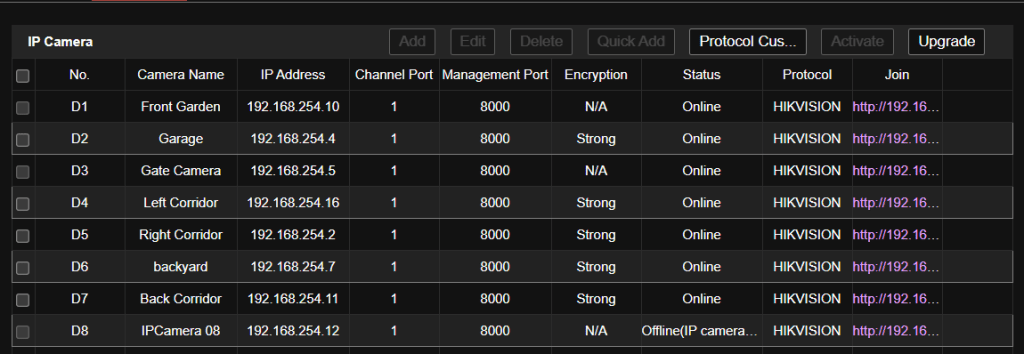
You can find HikVision camera information through the camera management portal using the NVR IP address. This information is available through Configuration –> System –> Camera Management –> IP Channels
A list of your connected cameras, along with their IP addresses, will appear here:
Accessing each camera individually
To be able to access each camera individually for configuration purposes, you will need to enable virtual host, which will provide a customized link for each camera. This can be done by accessing the configuration panel –> Click on Advanced settings –> Other –> Enable virtual host.
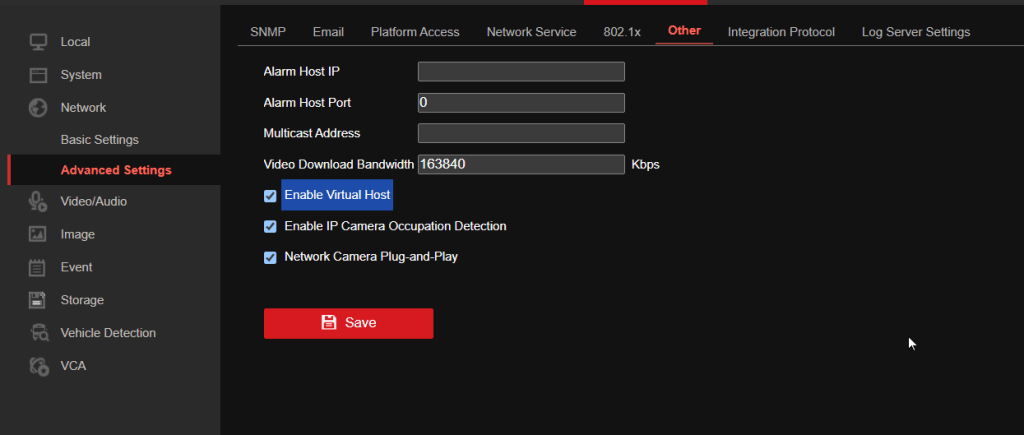
Once virtual hosts are enabled, you will see a list of URLs in the camera management list, which will allow you to manage each camera individually.
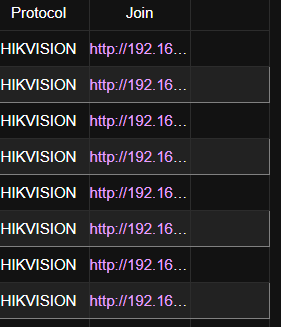
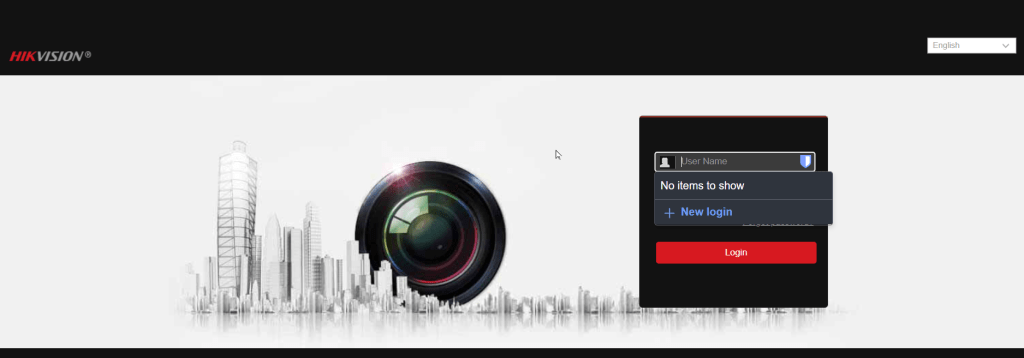
Clicking on the link will give you a customized URL that includes the camera port, enabling you to manage each camera individually or perform firmware updates.

Now we will visit different scenario to solve different problems
Scenario 1: You have disconnected your cameras, and while connecting, some cameras are offline.
- This scenario may arise when the IP addresses differ from the camera’s configuration.
- The Hikvision Portal will flag your camera as offline when you visit it.
- Trying to change the password to bring it online will not change the status.
- To solve this problem,
- you will need to connect a laptop on the spare POE port of the NVR
- Configure the IP address on the laptop manually as 192.168.254.25 (an unused IP address), 255.255.255.0 as the subnet mask, and 192.168.1.1 as the default gateway.
- You can then use SADP tool to find the right IP Address of the cameras or use Advanced IP Scanner to find the right IP Address of the cameras
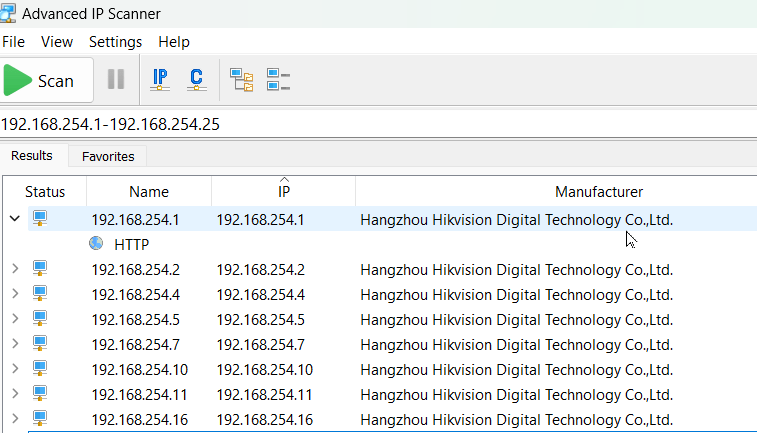
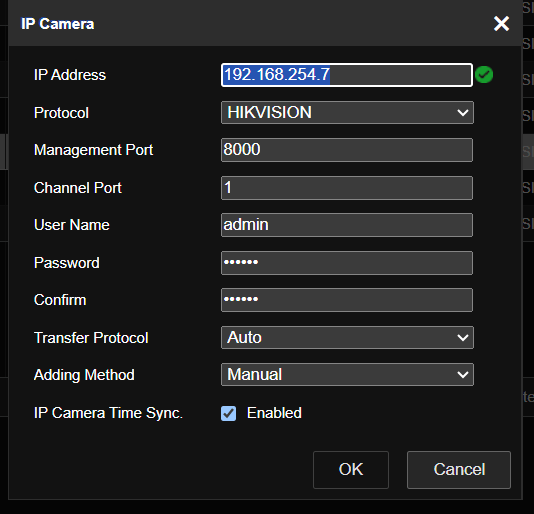
- Once you receive the right IP address, change it on the HikVision portal, which should solve the issue.
 Echo | Notes
Leave a comment